How to use Count-In
Open a song, check the orange “1”, pick a count-in and save. Everything else is optional; this page walks through it.
- First downbeat and tempo
- Tempo by ear (Tap)
- Count-in
- Playback and navigation
- Pauses
- Backing track
- Saving
- Models
First downbeat and tempo
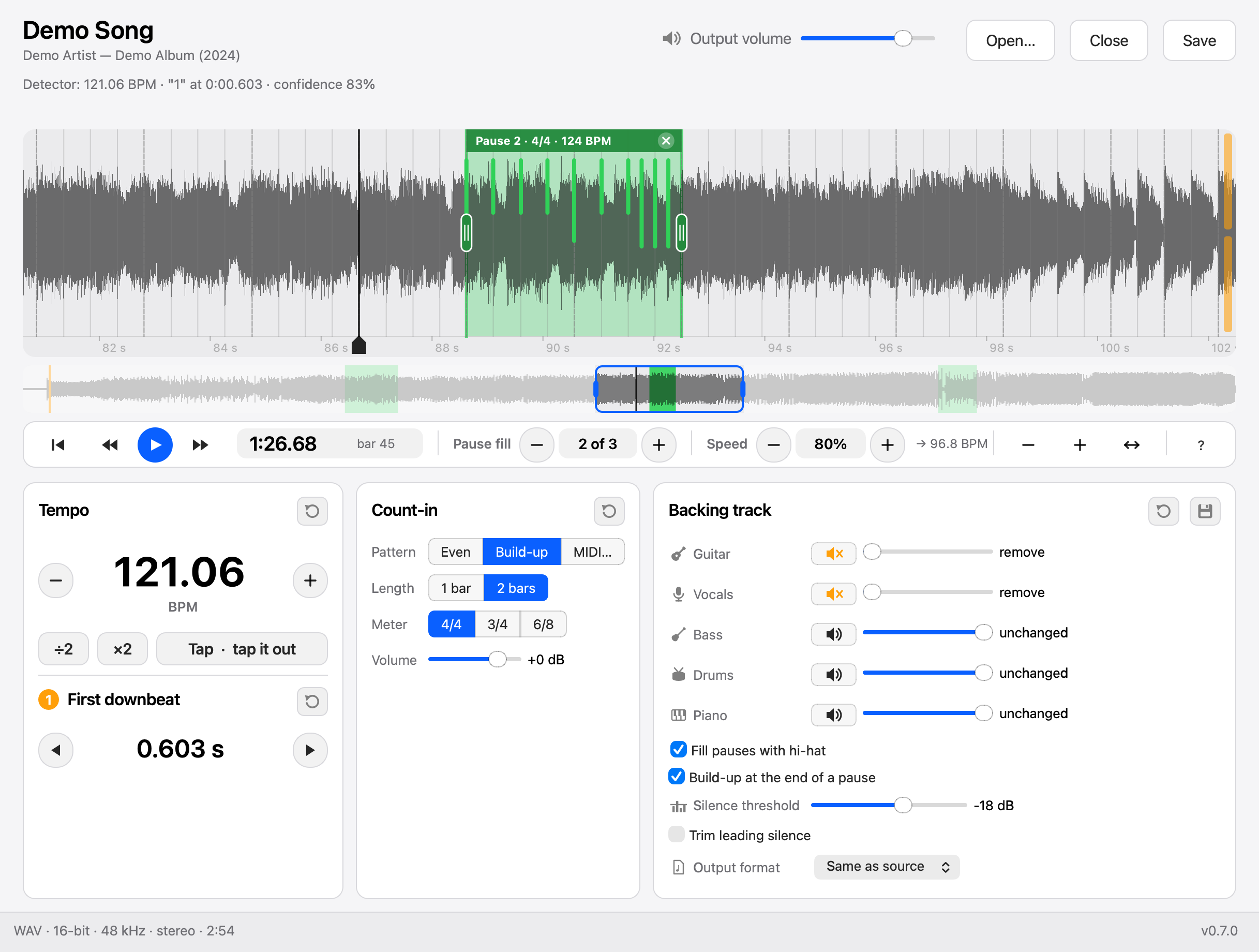
- The orange “1” marker sits on the first downbeat. The count-in ends right before it.
- If the detector got it wrong, drag the marker. It snaps to the detected beats; ⌥ turns snapping off.
- The arrows next to the time move the “1” one beat earlier or later.
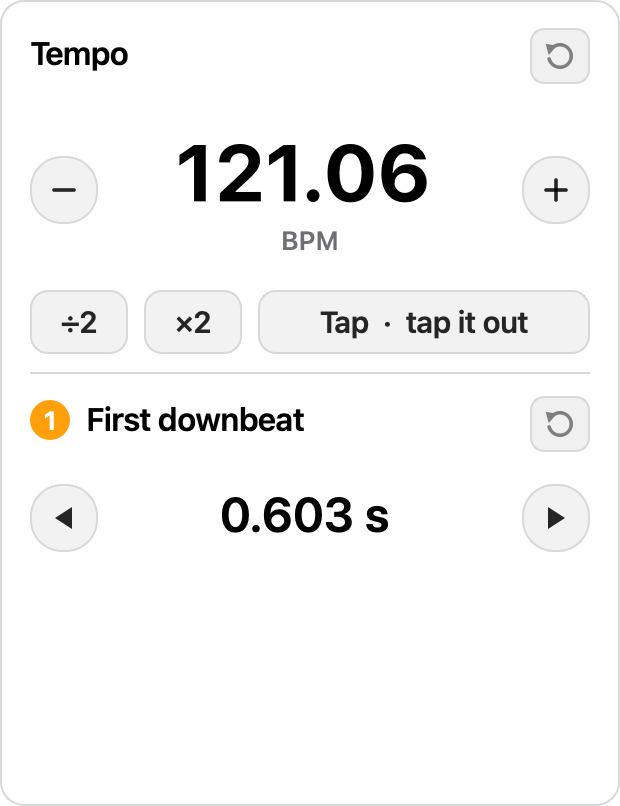
- Set the tempo with − and +, by typing a number, or with Tap: the song plays and you tap Space.
- ×2 and ÷2 help when the detector counted twice as fast or slow.
- The orange “The detector found another “1”” banner shows up when it is unsure. Click it to take the other candidate.
Tempo by ear (Tap)
- The Tap button in the Tempo card opens the “Tempo by ear” window, and the song starts playing just before the “1”.
- Tap Space along with the beat, at least three times. The taps are timed by the computer clock, not the audio buffer, so the tempo is right to a tenth of a BPM.
- Stop: two beats after your last tap the song goes on with a click at the tapped tempo and phase, so you hear at once whether it matches the song.
- If it drifts, just tap again: a gap of more than two seconds starts over.
- Apply puts the tapped tempo into the Tempo card; Cancel or closing the window keeps the old one. Either way the music stops.
Count-in
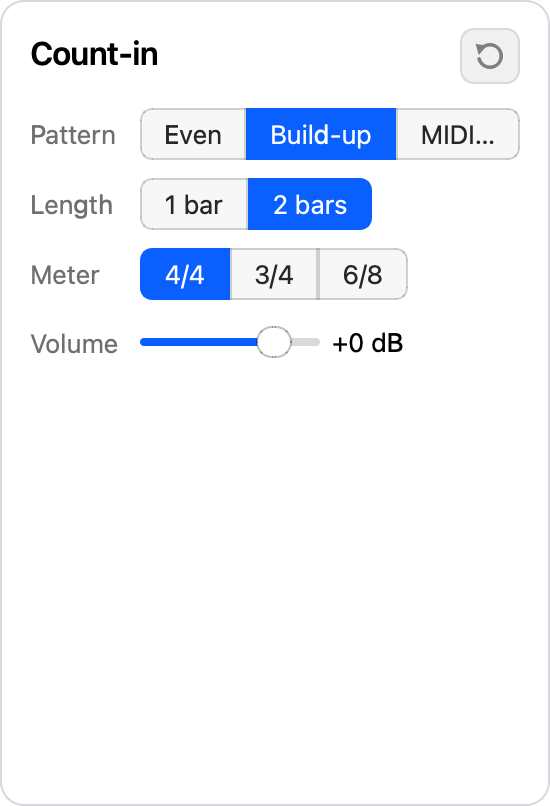
- “Even” clicks on every beat, “Build-up” starts sparse and gets denser, MIDI takes the pattern from your file.
- The count-in lasts one or two bars; the meter is 4/4, 3/4 or 6/8.
- The count-in volume does not depend on the song's level.
Playback and navigation
- Space starts and stops playback. Without a playhead it starts from the count-in.
- A click on the waveform sets the playhead, and playback starts from it. A double-click plays at once from the bar before that point.
- The ◀◀ and ▶▶ buttons and the ← and → keys jump to the previous and next pause and play from the bar before it. Home goes back to the count-in.
- The overview under the waveform shows the whole song, the pauses and the visible part. Drag the frame to scroll; a click outside it moves the view there.
- The mouse wheel zooms; dragging and sideways trackpad scrolling pan the waveform.
- The playback volume in the window header never reaches the saved file.

Pauses
- A pause is a run of bars that are quiet once the removed instruments are gone. A hi-hat plays on every beat in it. The stick count-in plays only at the start of the song.
- With “Fill pauses with hi-hat” on, the app finds pauses by itself in the track without the parts you turned down. “Silence threshold” gets fitted to it automatically; move it and the pauses rebuild. Turning a part back on keeps the pauses.
- Pause edges drag along the bars. The current pause is brighter.
- A new pause comes from the + button in “Pause fill” on the bar under the playhead, from selecting bars with ⇧ or from dragging along the time ruler.
- The cross in its header, the − button in “Pause fill” or a right-click removes a pause.
- A click on a pause header opens its own tempo and meter.
Backing track
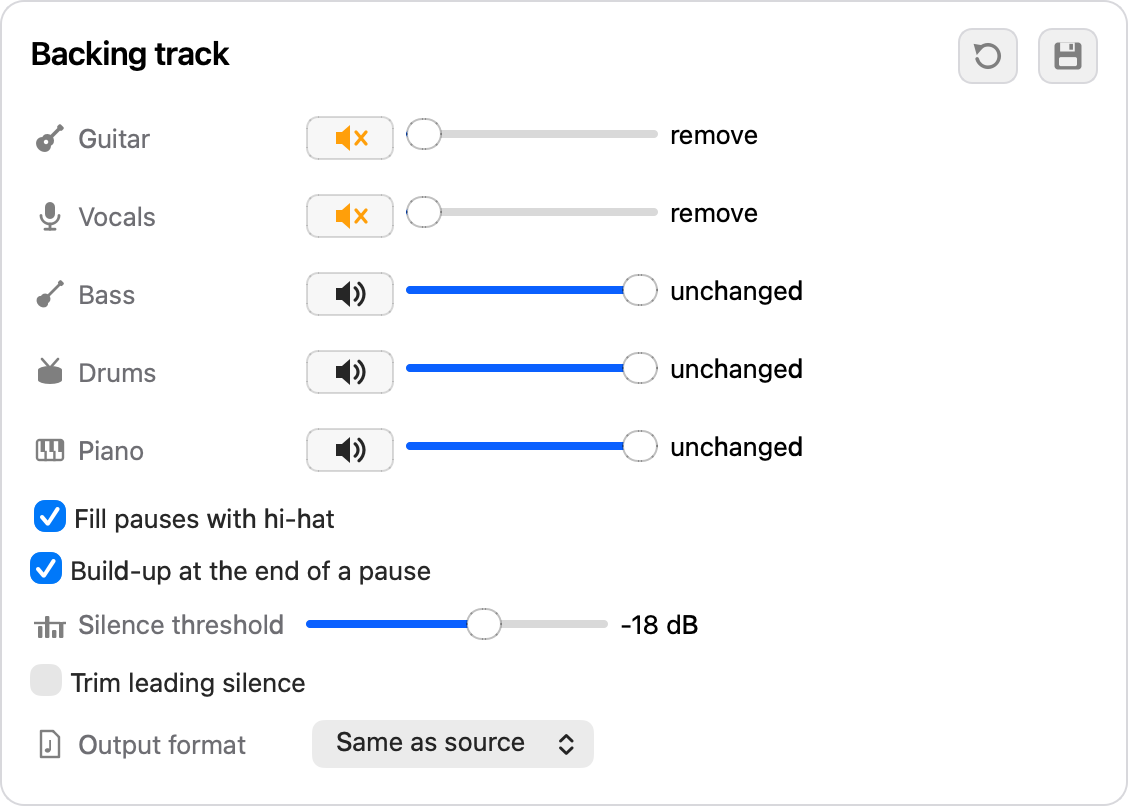
- The guitar, vocals, bass, drums and piano sliders turn a part down or remove it. The speaker button mutes a part in one click.
- The song separates into parts in the background after it opens. Anything that needs the parts starts by itself once they are ready.
- Levels can change while the song plays.
- The floppy disk in the card header saves the current settings as defaults, the arrow next to it restores them.

Saving
- “Save” writes the track with the count-in, the hi-hat in pauses and the chosen part levels.
- By default the format matches the source. MP3 320 kbps, FLAC, ALAC and WAV are available; tags and cover art carry over.
- “Trim leading silence” removes the empty space before the count-in.
- The output folder and grouping by artist, year and album are set in Settings.
Models
- Analysis and separation need models, about 780 MB. The app downloads them once on first launch.
- An assets folder next to the app works too, so the models can travel with it on a flash drive.